BitDave and his collaborators wrote this guide in 2006 using version 0.70
*While it is outdated, the issues it covers are still the same and you should have little trouble figuring out how to set things in current versions of BitComet. *
These are my settings for v0.70, hopefully they help you figure out yours 
If this guide doesn’t help then make a new thread with your problem or question
and please always include the following information so we can help you:
ISP: SBC-Yahoo DSL
Download Speed: 1.5 Mbits/s == 192 KBytes/s (Bitcomet uses Bytes)
Upload Speed: 384 Kb/s == 48 KB/s (notice the distinction between b & B)
Hardware: My DSL modem is bridged to a Dlink Wifi Router that serves 2 Desktops & 2 Laptops
OS: Windows XP-SP2 fully updated
AntiVirus: AVG free
Software Firewall: Kerio free (I have the XP-SP2 firewall service disabled in services.msc)
AntiSpyware: Spybot S&D, Adaware SE, SpywareBlaster and of course HijackThis
Only use my settings as a reference, decide for yourself what yours should be
PS: here’s some more handy freeware to clean up all your crap 
I will show a screenshot of my settings first, then explain the important settings
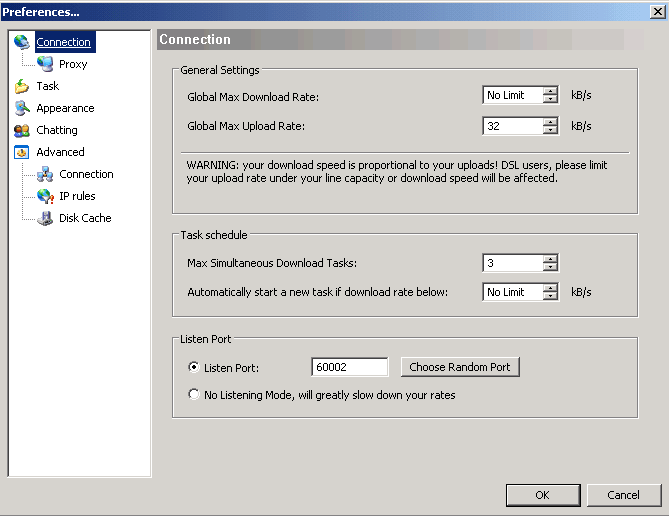
The first thing you need to do is test the speed of your internet connection
Go Here and choose a test server near your location.
do not have anything using the internet while doing a test
–Example–
–My ISP says i get a maximum 1.5 Mb/s download and 384 Kb/s upload
–When i did a speed test it said that i only get 1440 Kb/s and 320 Kb/s
–Now change the results of the test from bits to Bytes
–( 1440 Kbps / 8 ) == 180 KB/s download
–( 320 Kbps / 8 ) == 40 KB/s upload
–These are the ‘real world’ speeds that my ISP gives me
Global Max Download Rate: Normally leave this on No Limit
If Bitcomet is maxing out your download speed and you are having problems browsing, then use ~80%
(for me 180 * 0.8 = 144 KB/s)
Global Max Upload Rate: It is very important to set this to ~80% of your tested upload speed
If you’re sharing your connection with others you may want to lower this some more, especially if they also use p2p
If you set this too high then your download will be slow and you will have problems browsing.
If you set this too low then other peers will not want to trade with you.
(for me 40 * 0.8 = 32 KB/s)
Max Simultaneous Download Tasks: Base this setting on your Global Max Upload Rate
For most standard DSL/Cable connections you should set this to 1 or 2
If you try to run a lot of popular torrents all at once, you will lose a lot of bandwidth to overhead.
Overhead is the extra bandwidth needed for negotiating with other peers.
This means that you will have less upload bandwidth available for actually transferring files.
If you aren’t transferring files well, then your download speed will suffer because other peers won’t want to trade with you.
Try to have at least 8 KB/s of upload bandwidth available for each task
(for me 32 / 8 = 4, but i chose 3 so that each task gets 12 KB/s)
Listen Port: Pick any number within this range–> 49154 - 65534
If you connect to the internet through a router then you need to forward Bitcomet’s Listen Port
This guide will help you figure out if you have a router (some modems are also routers)
Also make sure that Bitcomet is allowed through any software firewall you may have (e.g. Kerio, Sygate, Comodo, Norton, Mcafee, etc)
If you only use the built in XP-SP2 firewall, then you don’t need to configure it because Bitcomet can automatically do it for you.
→ To test whether your Listen Port is open; start a torrent and wait about one to five minutes.
→ Now look in the Peers tab; If you see any “Remote” initiations then your port is open.
→ If they are all “Local” or “NAT Traversal” then you still have something blocking your port
No Listening Mode: Avoid using this mode
This mode should only be used if you have no control over the router(corporate/colleges).
This mode will greatly reduce your rates.
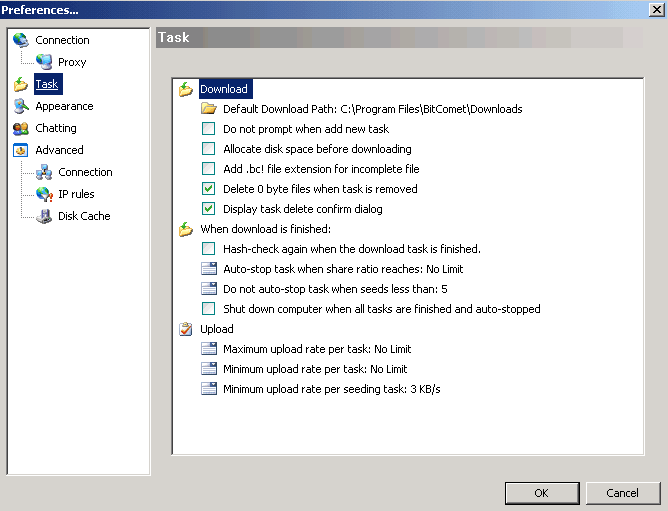
Default Download Path: C:\Program Files\Bitcomet\Downloads
This is where you can find all the files you have downloaded. If you are running out of room and have a second drive, you might want to point your default location there instead (ex. D:\Shared). Changing the default location won’t affect downloads currently in progress, nor will it move them for you. It will only affect new downloads.
Do not prompt when add new task: Depends on User
Check this option to automatically start a task when it is added. Useful for RSS feeds
Allocate Disk Space Before Downloading: Depends on User
When you choose this option, BitComet will “reserve” the full amount of disk space that the file will need as soon as you start the torrent. You might not want it to do that, especially if disk space is tight. If you disable the option, then BitComet will only allocate the space that it currently needs, and the file size will gradually grow to the full amount as the download progresses. This won’t make the finished file take up less room, but you’ll have plenty of time to move things around, burn completed downloads to CD or DVD, and generally manage your disk space to make enough room while the download is in progress. On the other hand, some prefer to be warned that they are running short of space ahead of time, and BitComet will refuse to start the torrent if it can’t preallocate enough space.
Add .bc! Extension to Incomplete File: Depends on User
When this option is enabled, BitComet will add “.bc!” to the end of the file extension. Instead of
MyDownload.rar
the filename will be changed to
MyDownload.rar.bc!
in the directory listing.
BitComet will change the extension back to normal when the download completes. This is useful because you can tell from a glance at the directory, which files are incomplete. It will also save you the mistake of trying to use an incomplete file.
Everything else should be self explanatory
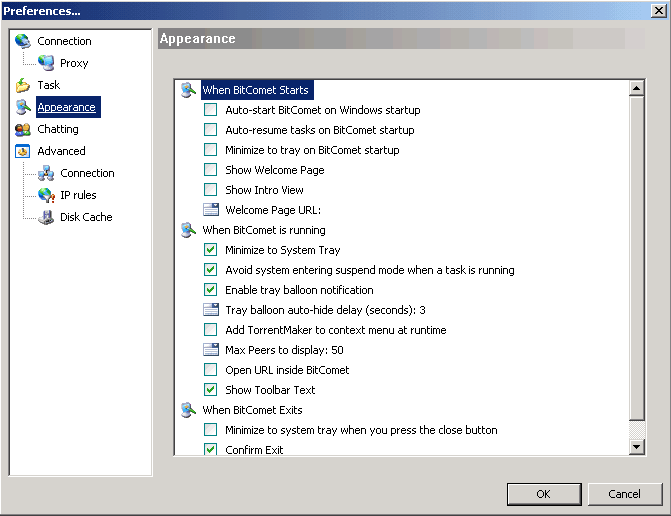
Again things are self explanatory
as you will notice I dont browse the web at all through Bitcomet
(uncheck Show Welcome Page & Open URL inside Bitcomet)
Instead I use firefox and just bookmark all my favorite torrent sites
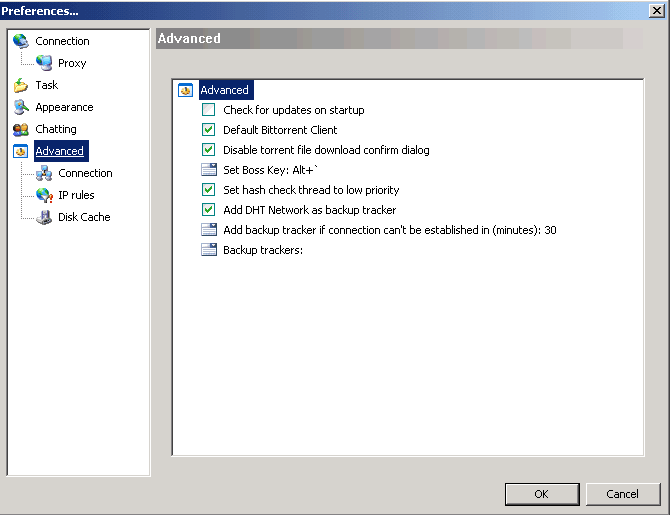
no need to explain anything here
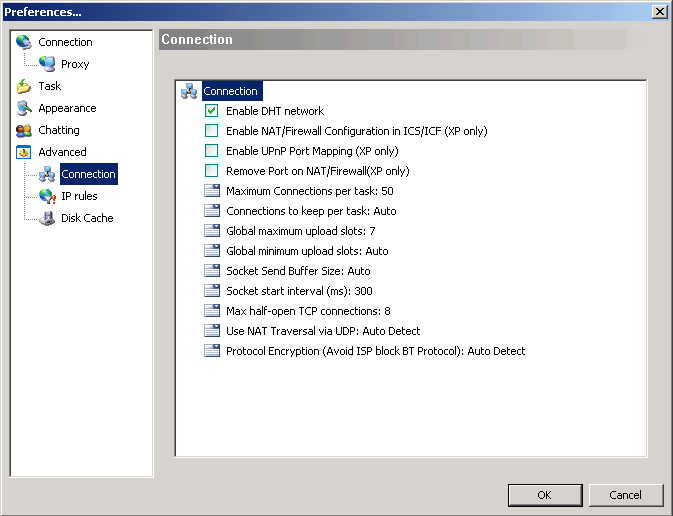
Enable DHT Network: Checked
Some routers dont handle the DHT Network properly and may disconnect → read here
The DHT Network is not necessary for downloading; but it can be useful when you are unable to connect to the tracker(s), or when the tracker doesn’t give you any seeds.
If you’re on a slow connection (upload speed < 256Kb) or pay per MB then you might want to disable the DHT Network to reduce overhead
–You need to restart Bitcomet if you change this setting for it to take effect–
Enable NAT/Firewall Configuration ICS/ICF (XP or later only): Depends on User
This will automatically configure the rules in Windows ICS and/or the Windows ICF for you.
I suggest you leave this Checked, since it doesnt hurt anything even if you dont need it.
I have the Windows XP firewall (ICF) disabled and I dont connect through another Windows XP computer (ICS);
so I have this option Unchecked.
Enable UPnP Port Mapping (XP or later only): Depends on User
Check this option if you want Bitcomet to automatically set up your router’s portforwarding
–you need to have UPnP enabled in your router and in Windows XP for it to work–
Uncheck this option if you manually configured the portforwarding in your router.
Remove Port on NAT/Firewall (XP or later only): Depends on User
I suggest you leave this Checked, since it doesnt hurt anything even if you dont need it.
This will remove the portforwarding rules in Windows ICS and ICF for you when you exit Bitcomet.
Max Connections per task: normally just leave this on Auto
Setting this too high can overwhelm your connection, 50 works good for my connection
but if you have a faster connection then mine try 80, or 100, or 150
If you use 150 try not to run too many torrents at once
Connections to keep per task: Auto
Global Max upload slots: Depends on your Global Max Upload Rate
My upload cap 32 KB/s divided by 7 peers means that I can upload ~4 KB/s to each peer
Try to set this so each peer gets at least 3 KB/s
Global Min upload slots: Auto
Max half-open TCP connections: 8
This guide explains in detail what this setting means. You should set this at 8 if you have Windows XP-SP2 or later.
NAT Traversal via UDP: Auto Detect
Allows two users blocked by NAT to connect to each other, it uses UDP packets to bypass the NAT.
This can help boost your speed if you arent able to configure your router.
Protocol Encryption: Auto Detect
If you know that your ISP blocks or throttles file-sharing then you should try “Always” mode
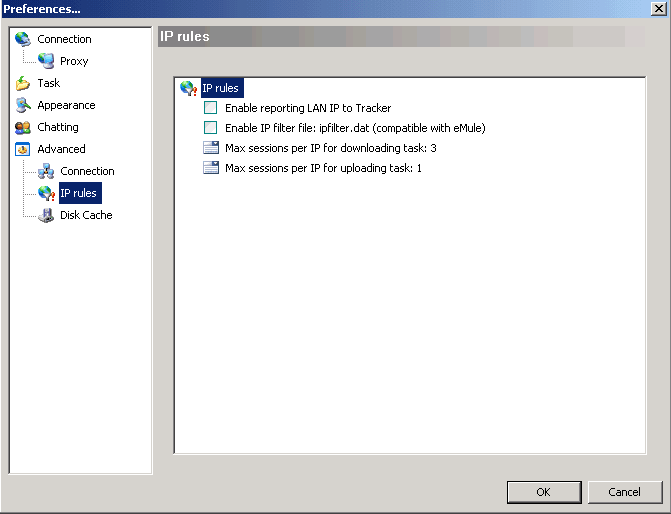
Enable reporting LAN IP to Tracker: Unchecked
You should only enable this if you connect through a proxy server.
Instead of using an IP Filter, you should use PeerGuardian 2 to block the MAFIAA 
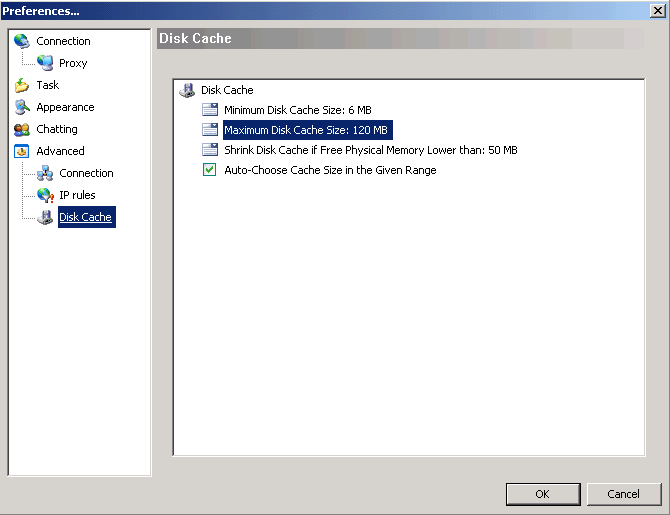
If you have a fast connection and some extra ram then you may want to increase the Max Disk Cache Size
i have plenty of available ram so i changed the max to 120MB.
You can also force Bitcomet to use a larger disc cache by increasing the Min Disk Cache Size but I dont recommend this.
Good luck and remember my settings are not the answer to everyones speed problems
Speed tips…
-Make sure all your hardware (routers/NICs/computers) have up to date firmware/drivers and are set up properly
-Also make sure your computing environment is clean (no bad drivers, conflicting software, virus, trojans, etc)
-Try to sign up or get invited to a private tracker and try to get torrents that have lots of seeds and peers
-Avoid ISPs that block or throttle file-sharing (if you can)
before posting anything
If you have any individual questions please look through these FAQs
For a good listing of torrent sites to download from go here or here
If you still have a problem or question then make a new thread with a descriptive title and please include as much information as you can (ISP/speeds, hardware, software, and any other information you think will help)
This is the best way to receive any help from us volunteers.
Cheers