How to open completed Torrent downloads
Before reading this guide, you’d better have a look at** " Not sure what kind of file(s) you have received? "** (Edit: Link no longer valid.)
In summary, this guide assists you with the following file types: .rar .par .par2 .cdi .b5i .iso .bin & .cue .dat .mdf & .mds .vob (& .BUP .IFO), .daa
Hello Everyone,
Lol, ok  I know that you’re all very eager to learn about the bittorrent network, or to solve some issue after you have downloaded some 2 gigabytes or more of files.
So, before you create a topic seeking help, please have a look at this short guide, it should be able to help you out 
Ok, let’s get started.
There are usually 3 steps to obtaining the actual file that you want after you’ve painstakingly waited for bittorrent to complete the download.
Check each step, and see which one applies to you, then keep going.
Skip step1 and go to steps 2 & 3 directly if the file that you’ve downloaded is a video file of some sort i.e. .bin/.cue/.mpeg/.avi/ .mkv/ .ogm / .daa / .iso
Step 1:
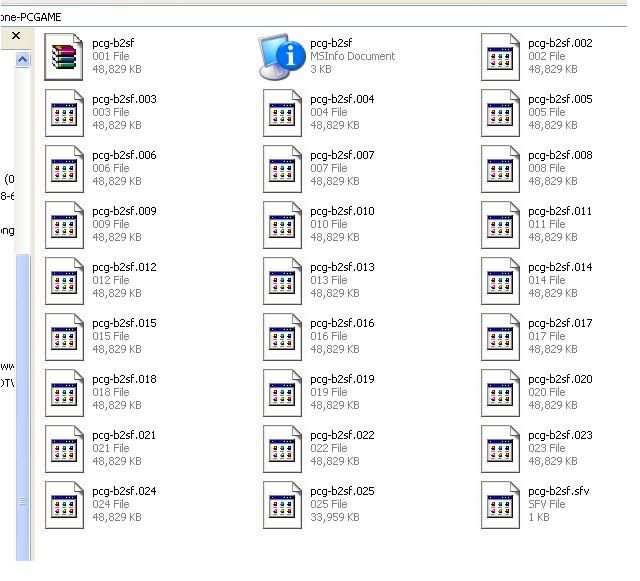
Upon completion of your bittorrent download, you should see a compilation of files ending with 0001 or some sequence at the end of the same filename, but different suffix.
I.E.
comets0001
comets0002
etc, etc
An NFO file & SFV file may also be included within the download.
The NFO file is used to instruct the user on HOW to apply cracks, or even install the application/game, so to open this file. Right-Click on the NFO file and open with notepad
The SFV file is usually a text file, which is also opened with notepad, this file basically tells you what FILES are within your torrent download, this is used for checking the contents of your torrent download.
What do you do with these?
Well, they’re basically RAR portions.
Explanation: WinRAR is what we call an “archive manager” program. Its job is to package and compress large files for more efficient downloading. WinRAR is capable of squeezing a 1024 megabyte movie into 600 megabytes of smaller linked files. Because of its power and versatility, this tool is extremely popular amongst file sharers.
In your case, you are interested in decompressing (“extracting”) a downloaded file, and converting back into full usable format.
Be sure to download and install winRAR!
You can download winrar at www.rarlab.com
Note: Winzip can do the same job, however most bittorrent users choose winRAR instead due to its better user interface. This is also due to the fact that most files are compressed by groups using winRAR
Open the completed torrent download Folder: [below is a screenshot of what your folder’s contents may look like]
Once your computer recognises these files as RAR files, it should look like the below screenshot (circled) If you see alot of files, looking like blank icons, please right click on any one of the files, and click open with —> choose program (find winRAR.exe), and click the checkbox Always use the selected program to open this kind of file. Your PC will now automatically recognise these as RARed files.:
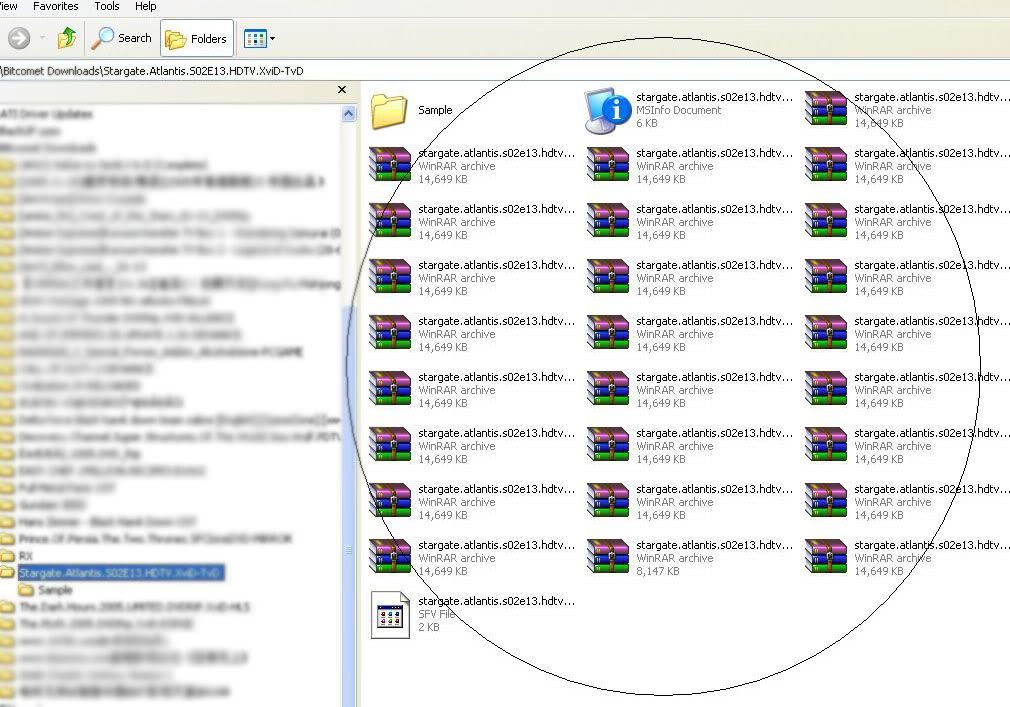
Next, Double-click on any one of the files ending with those 0001, etc
If your computer still does not recognize these files, right-click any one of these files, open with → winRAR
Extract to your desired location.
Should you receive an error from winRAR during extraction, try ‘testing’ the RARed file, by locating your file in WinRAR and clicking TEST. If the test comes back negative, Re-Hash the torrent file to see whether or not you’re missing any files.
Wait, my files aren’t in .rar form, they’re in .par or .par2 filetype! What do I do?
Well, in quick summary, .par and .par2 are not used commonly, these types of files are used to repair missing/corrupt .rar files. I haven’t seen or used these types of files for a long long time. So, my basic knowledge is head to this site to download their app + read tutorial on using this application.
http://www.quickpar.org.uk/
More info regarding this type of file can be obtained at: http://www.slyck.com/ng.php?page=6
Step 2:
After extraction, you may find an ISO image, .daa image or .bin. or .cue or .dat or .mdf (& .mds if .mdf file is present, but don’t worry about the .mds file, it is needed, but Alcohol120% will only see the .mdf file present)
These can all be further ‘mounted’ or burnt onto 700 mb CDs with a program known as Alcohol 120%.
Please note, if Alcohol120% cannot play the .daa file, use this application to open it:
[PowerISO mildly supports more formats than Alcohol120%, but we recommend you to use Alcohol120% since it is much more user-friendly and updated more frequently.]
Alcohol 120% can be downloaded at: www.alcohol-soft.com/
**Part 1:**Now open the program. 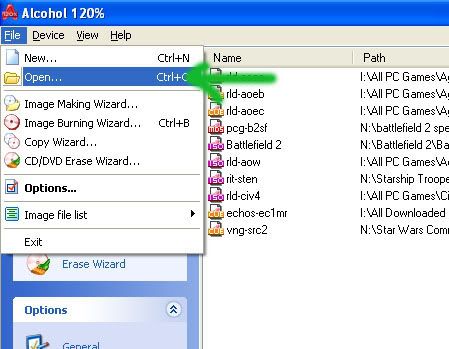
Click on File → Open
Part 2: Next, locate your image file, then click Open. [Just to clarify, in this step, any image that Alcohol 120% can see in its window, means that it’s a recognisable image. If you cannot see this image file with Alcohol 120% during the opening of it, please proceed to the bottom of this guide, and locate the notes next to the bold-red ‘Update’ word.
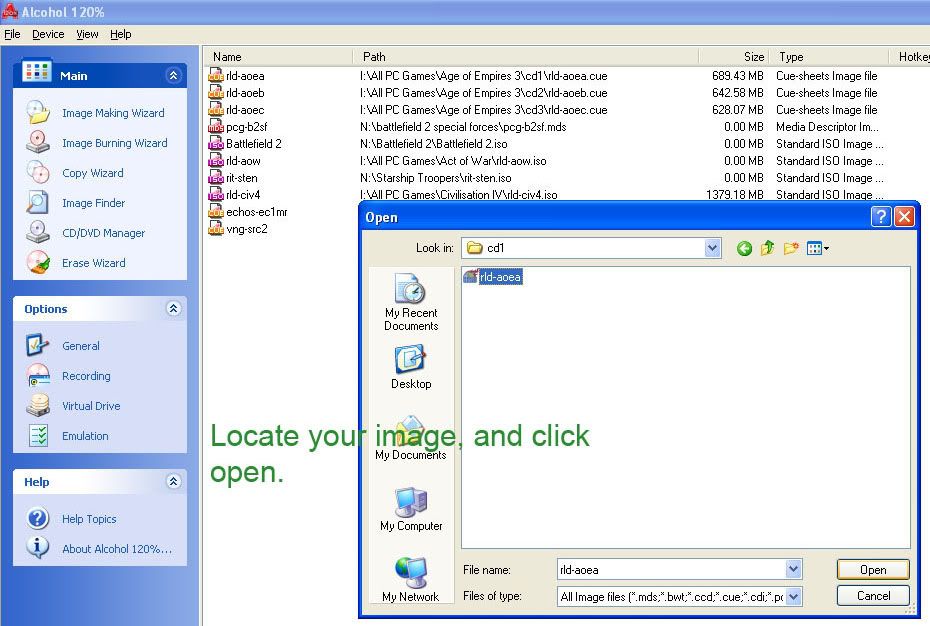
Part 3:[if it does not open or you’re unable to see your image file even though you’re in the right directory, then Alcohol does not support this image extension, if so, use Daemon Tools, which can be downloaded by
Clicking Here]
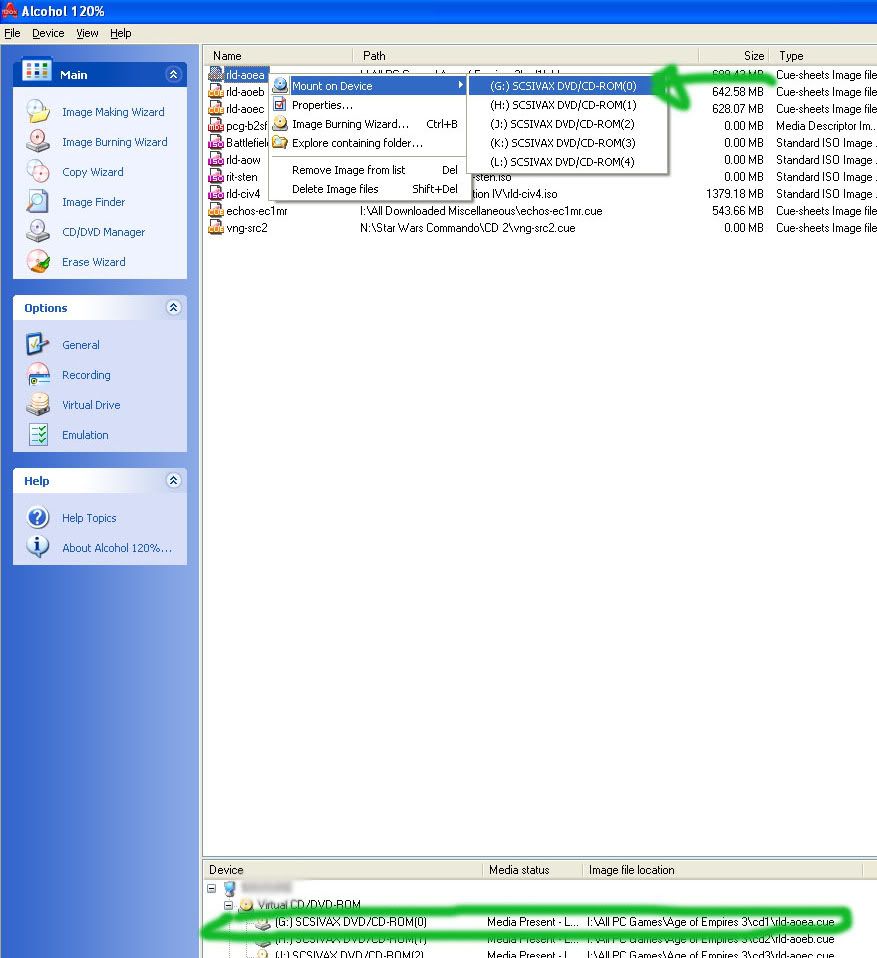
Now, the final Step, Mount the image, by right-clicking on the file [it should appear in the white boxed area] —> Mount —> Choose your virtual drive letter
Once opened, you should see it in the bottom section of Alcohol 120%, indicated by the green ‘almost’ rectangular box I’ve drawn.
If you’re starting to run out of virtual drives, head to File → Option → Virtual Drive → Choose the number of drives you want. Now your file is mounted and ready to be accessed in Windows Explorer. [Look below in screenshot]
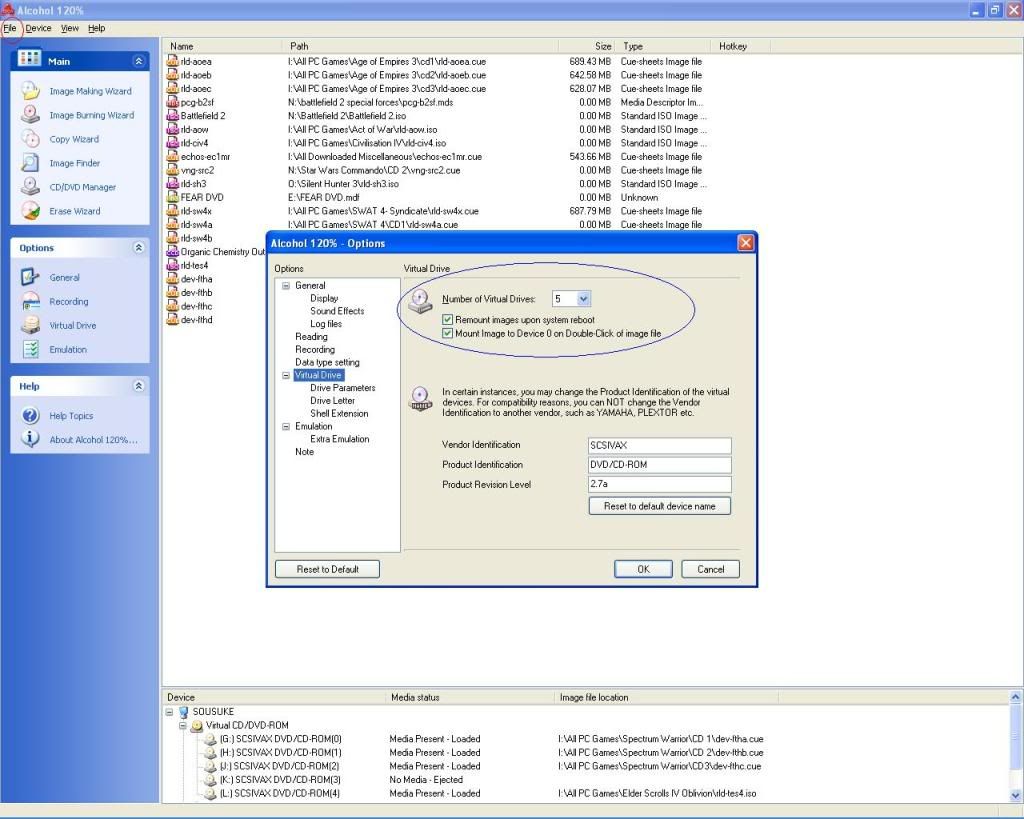
It should auto-run if it is a software/game, if not, access via Windows Explorer. If you are required to burn the image onto a 700 mb CD, its simple, just left - click on that burning CD image, and click Burning Wizard [icon with a burning disc to the left hand side - Main Tab]. Then Alcohol will guide you through their burning process step by step, just like Nero.
Concerns have been raised with whether they should use Nero ImageDrive - This is not a good software to use for burning images onto CDs/DVDs, it’s much better to stick to Alcohol 120% If you use this program, you use it at your own risk, there are just far too many problems with Nero burning such images. This program is only good for Cd-Copying, or Data Disks. ISOBuster is not a good software, either to decompress image files, this software has been known to corrupt the image’s contents. If you really need to use these 2 applications, please raise this issue at the Technical Support Forum
How do I apply the (crack).exe to my Game/Software
Most torrents contain instructions for applying any necessary cracks/patches for games/software in the form of a “file.nfo” This is a text document, and can be opened in any text editor. We cannot offer any assistance in using such files as they violate the publisher enduser agreement.
Step 3
Ok, I’ve done all of that, but my file isn’t a software or game CD, rather its a movie file! But I’m unable to open the movie file with my windows Media Player.
This can be done by downloading below [Read the .vob part if your file does not end in .mkv/.ogm/.avi/.mpeg/.divx]:
You will need to install the an appropriate codec pack, have a look at this list, by Clicking Here (Credits to Const2k for the link) and download any one of the codec packs provided on that site. If there are Full packages there for download, use those.
Alternatively, we also recommend users to use the CCCP pack (You will need to read their FAQ/Installation info), click the link below, then open your files with your favourite media player i.e. Windows Media Player.
cccp-project.net.
.mkv & .ogm files must be opened via Windows Media Player Classic. Right clicking on the video screen during the playing of the video file will pop-up alot of menus, one of which enables different audio output, so you can watch that anime in either English/Japanese. Subtitles should automatically be played in your video file…if not, be sure to install DirectvobSub.
.vob & .ifo & .bup files are DVD files, these can be played with Cyberlink PowerDVD
.bin .cue files may sometimes also be packaged as a film within the torrent download. Refer to Step 2, to mount the .bin .cue file, then once it’s mounted, you should be able to see media files within the virtual drive.
.b5i files are BlindWrite Files, please head to the BlindWrite website for further information regarding this file type, and how to open it.
The BitComet staff hope that this answers any of your questions regarding the opening of your completed torrent downloads.
If you have any further questions, feel free to post a new topic within BitComet help.
*Update: If you have downloaded an image which was not explained above, such as ccd or nrg, etc. Please head here for further information:
http://10mbit.com/faq/bt/#41 and locate: “4.2 Compression Formats” You will also find further info & F.A.Qs all related to bitttorrent.
Kind Regards
BitComet Team
Fully Updated & Completed Guide - 11th July, 2006 for user-purposes
Please keep in mind that this is only a general guide, if you require specific assistance; please create a new topic within the appropriate BitComet Help sub-forum(s). Should there be any incorrect, or out of date information within this guide, feel free to PM me, and I’ll update it as necessary. If I missed out in crediting anyone, or any site when creating this guide, PM me or any other BitComet staff, and they will make the alterations as needed.