“Some important data lost on my iPhone5 after factory reset, I had not backed it up, is it possible to recover data after iPhone factory settings and how?”
Have you ever encountered the situation above? When there is something wrong with your iPhone, and you have to restore iPhone to factory settings. Unfortunately, you find some important data lost on your iPhone after factory reset. You were eager to recover data after iPhone factory settings. Here I’ll introduce you 2 ways to recover data from iPhone after factory reset.
How to recover iPad lost data after factory setting restore with or without iTunes backup?
If you lost all of your iPhone data after factory restore, you can choose to restore the whole content by using iTunes, iTunes will automatically generate a backup files for your iPhone when you synced with it every time. But the problem is iTunes doesn’t allow you to restore data selectively. If only parts of the data are lost and you don’t want to erase all the current data on your iPhone and restore to previous backup files, you need a third-party tool to help you.
Pavtube iOS Data Recovery is a reliable iPad/iPod/iPhone data recovery software, which can extract iTunes backup to recover iPhone data after factory reset, also can directly scanning your iOS Device when you have no backups.
Download the free trial version of iOS Data Recovery to have a try.
Please choose the right version for your computer: ["]Pavtube iOS Data Recovery (Mac)](http://pavtubecrm.pavtube.com/download/?n=test) or Pavtube iOS Data Recovery (Windows)
Solution 1: Recover iPhone data after factory reset by extracting iTunes backup
Pavtube iOS Data Recovery can help to recover up to 11 types of files from
iPhone/iPad/iPod backup.
Step1. Choose Recovery Mode
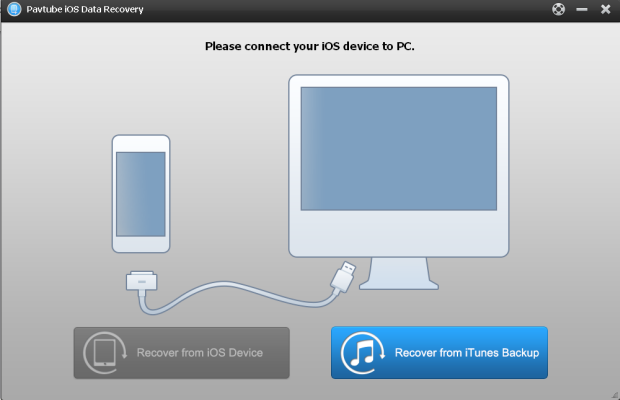
Run iOS Data Recovery on the computer, Choose “Recover from iTunes Backup” On the main interface.
Step2. Select a backup files
All the iTunes backup files of your iOS Device which has ever synced with iTunes on this computer will be automatically found and listed here. Choose the latest iPhone backup and click “start to scan”

Step3 preview and recover data
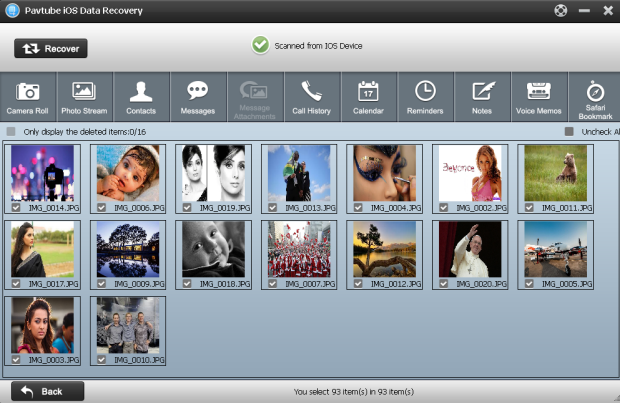
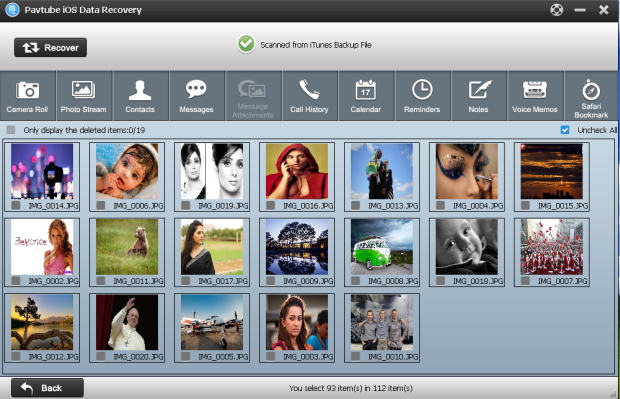
After quick scanning, you can see a bar containing tabs of camera roll, photo stream, contacts, messages, call history, calendar, notes, etc. click on different tabs to preview items and selectively mark and recover those you want by click the “Recovery” button to save them on your computer.
Solution 2: Directly recover data from iPhone after factore reset
Step 1: Connect iPhone to computer and Choose Recovery Mode
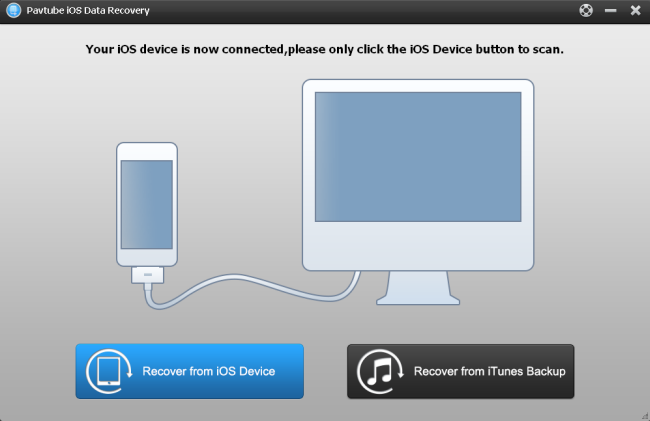
Run iOS Data Recovery on your computer; connect your iPhone to the computer with USB cable. Then select the “Recover from iOS Device”.
Step 2: preview and recovery data in the scan result
iOS Data Recovery will automatically scan your iPhone to find out and list all the existing and deleted files.you can preview all data found on your iPhone in the scan result.selectively mark what you want to save them on your computer.