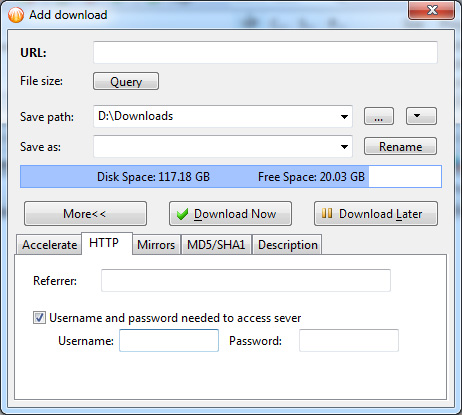
This is an issue between Firefox and the web site, not one that really involves BitComet. BitComet is acting as the download manager, but the web site demands authentication for you – and not for the download agent. IOW, it would not matter which download agent you were using, you would have to authenticate.
FireFox has an option to remember login names and passwords for sites that require them, as this one does for downloads. You must enable this option overall, then you must tell FF that you want it to remember the login and password for each particular site. Every time you encounter a new site, FireFox will then offer to remember your login, and you can tell it, “yes”, “not now”, or “Never” for this site.
If you have already enabled this option and you have previously told Firefox “never for this site”, then you can change that option by going into your Firefox configuration. But at this point, you need to seriously delve into Firefox’s configuration options and spend some time studying what it can do. Look under Tools → Options, and begin exploring carefully.
Once you enable the option and visit this site, tell FF to remember your login for it. Thereafter, FF will enter your login and password automatically each time you come to this exact web page that requests them. (Notice that if you come to a DIFFERENT page on this same site, that still asks for your authentication, you will need to enter it then. FF will offer to also remember this page for you.)
Esto es un problema entre Firefox y lapágina web, no uno que atañe Bitcomet, en realidad. BitComet está actuando como el gestor de descargas, pero la página exige autenticidad para ti - y no para el gestor de descargas. Es decir, no importaría cual gestor de descargas estuvieses usando, tendrías que autenticar.
Firefox tiene una opción para recordar nombres de usuarios y contraseñas para las páginas que lo requieren, tal y como lo hace esta, para poder descargar. Tienes que habilitar esta opción en general, y después decirle a Firefox que tú quieres que se acuerde del login y contraseña para cada página particular. Cada vez que te encuentres con una página nueva, Firefox entonces te ofrecerá recordar tu login, y tendrás la opción de decirle “Sí”, “Ahora No” o “Nunca para este sitio”.
Si ya tienes esta opción habilitada y ya le habías dicho a Firefox “Nunca para este sitio”, puedes cambiar esa opción, yendo a la configuración de tu Firefox. Pero, a estas alturas, necesitas meterte a fondo en las opciones de configuración de Firefox y dedicar algo de tiempo estudiando lo que puede hacer. Busca en Herramientas–>Opciones, y empieza a explorar con cuidado.
Una vez que habilites la opción y visites la página, dile a Firefox que recuerde tu login para la misma. Desde ese moemnto, Firefox recordará tu login y contraseña, de forma automáticamente, cada vez que vuelvas a exactamente la misma página que lo pide. (Nota: Si accedes a una página DISTINTA, aunque esté esta en el mismo sitio, que todavía te pide tu autenticidad, necesitarás escribirlo de nuevo… Firefox te ofrecerá recordar esta (nueva) página, también.)